
How to Send Game Feedback to PlayBattleSquare
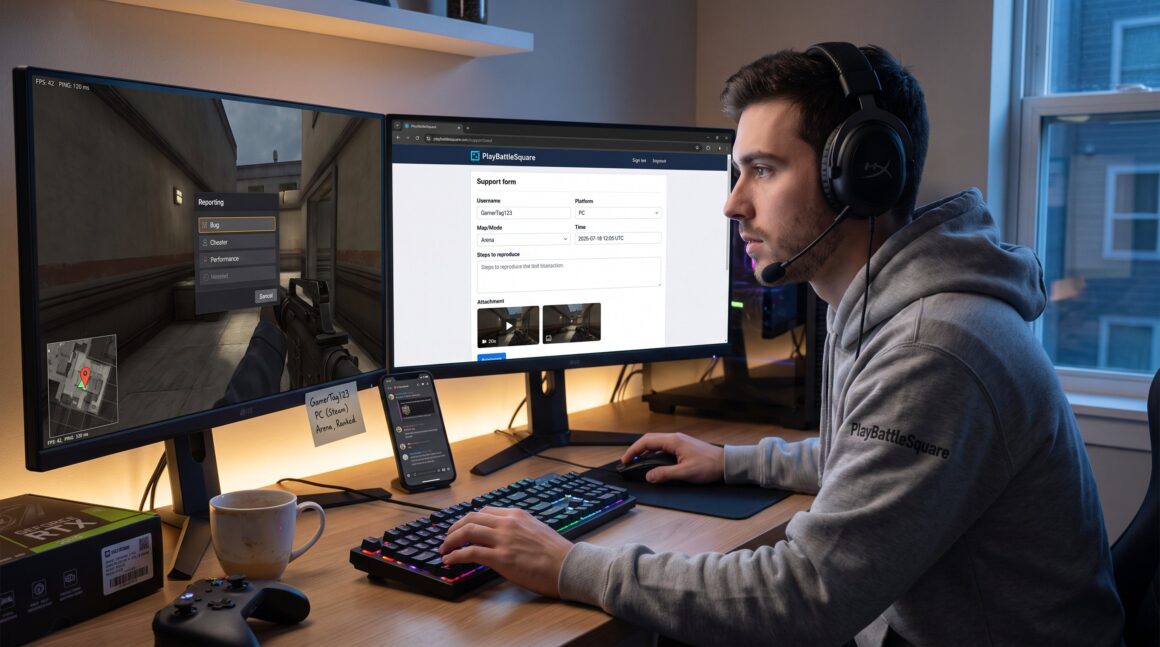
How to send game feedback to PlayBattleSquare starts with a clear report and the right channel. Gamers who report issues quickly help fix bugs, improve balance, and curb toxic behavior. This guide shows when to send feedback, what to include, and the fastest paths, whether inside a match, via the site, or through community channels. It focuses on practical steps, concrete examples, and honest warnings so players get results without wasted time.
Key Takeaways
- Sending prompt, clear game feedback to PlayBattleSquare helps prioritize bug fixes and improve gameplay balance.
- Include specific details like username, platform, game mode, exact time, reproduction steps, and attachments to make feedback actionable.
- Use in-game reporting for immediate issues like crashes and exploits to automatically attach session data and speed up responses.
- For technical, billing, or complex problems, submit structured tickets via the PlayBattleSquare website to receive tracking numbers and support.
- Engage community channels like Discord to confirm bugs and increase issue visibility, but always back public posts with official tickets.
- Track your feedback with ticket numbers, follow up within a week if unresolved, and escalate through proper channels when necessary to ensure effective resolution.
Why Your Feedback Matters And When To Send It
Feedback matters because it directly influences fixes, balance, and community safety. Send feedback when a bug, exploit, performance drop, UI error, or abusive player appears. For example: if a match crashes repeatedly at 12:05 UTC on the same map, that timestamp and map name make the issue reproducible.
Players often wait, thinking someone else reported the problem. That delays fixes. A single clear report can move a bug from “low priority” to “investigate now.” PlayBattleSquare uses player reports to prioritize fixes and moderation, so timely reports matter.
When to send feedback: immediately after a reproducible glitch, within 24 hours for account or billing mistakes, and as soon as a safety issue occurs. For non-urgent suggestions, like balance ideas, send after you collect examples and one or two short clips. Concrete evidence increases the chance the team will act.
What To Include In Clear, Actionable Feedback
Start with the key facts: username, platform, game mode, server, and exact time. This gives the support team what they need to find logs. Next, list steps to reproduce the issue in plain order: what we clicked, what we expected, and what happened instead.
Add attachments. A 10–30 second video or three screenshots beats a long paragraph. Include error messages and FPS numbers when performance is the problem. For site or article corrections, include the article title and the incorrect line.
Keep reports short and factual. Example template:
- Username: GamerTag123
- Platform: PC (Steam)
- Map/mode: Arena, Ranked
- Time: 2026-07-18 12:05 UTC
- Steps to reproduce: Spawn → enter east gate → interact with lever
- Actual result: Game freezes for 5–7 seconds
- Attachments: two screenshots + 20s clip
This format saves the support team time. It also raises the chance the report becomes a tracked ticket rather than a note.
How To Submit Feedback From Inside A Game (In-Game Reporting)
Use in-game reporting for crashes, exploits, toxicity, and immediate gameplay bugs because it attaches session data automatically. Open the pause menu or reporting icon and select the closest category: Bug, Cheater, Harassment, or Performance. Fill the fields with the short template above and attach a clip if the tool allows it.
For example, a player who finds a clipping exploit should choose “Bug,” add steps to reproduce, and mark the location on the mini-map if the tool offers map tags. If a match shows repeated latency spikes, select “Performance” and include the approximate ping and FPS readings.
Warning: in-game systems sometimes limit attachments and descriptions. If the issue persists or the report needs logs, escalate to the website ticket system with the same template and reference the original in-game report ID, if one was issued.
Using The PlayBattleSquare Website: Support Forms And Bug Reports
The PlayBattleSquare website offers structured tickets for technical, account, and billing issues. Use the site when you need attachments, tracking numbers, or a longer explanation. Tickets provide a reference number and let the team request logs or reproduce steps.
Players should attach the same factual template used in-game and add system diagnostics: OS version, GPU model, and driver numbers for performance problems. For payment problems, include invoice numbers and the payment method.
Where to start: go to the official support hub and choose the right category. For general directions and full contact options, players can reference the site’s support overview and contact page in the help center. The support hub often suggests account recovery options before a live response, which can save time.
Example links: the site’s support hub explains ticket workflows and expected response windows. For billing-specific cases, contact the dedicated billing help page so the team gets payment details immediately.
Sharing Feedback Through Community Channels And Social Platforms
Community channels work well for quick questions, reproducible bugs that others can confirm, and trending problems that need visibility. Use Discord for real-time help, thread bug reports in the appropriate channel, and paste your short template with attachments. Moderators often triage high-impact issues there.
Social posts on X or Facebook can speed awareness, but they rarely include the diagnostic details support needs. If posting publicly, add a brief summary and then submit a ticket so the team can investigate. Community posts also help confirm whether other players see the same issue, if ten players post matching clips, the problem becomes urgent.
Players should read official community guides before posting. For practical reading on how to contact the site and recommended channels, the site’s contact gateway lists active platforms and response expectations. For community news and event context, the piece inside the community explains where tournament and server updates are announced.
Tracking Responses, Following Up, And When To Escalate
A ticket number is the single best tracking tool. Tickets let players check status, add new evidence, and see staff replies. Typical initial replies arrive within 24–48 business hours, but complex technical investigations can take longer.
Follow up when: 1) the ticket is unanswered for 7 days, 2) a requested log is missing, or 3) the issue worsens. Keep follow-ups short: reference the ticket number, restate the key facts, and add any new attachments. If a developer asks for a repro clip, upload it rather than summarizing.
Escalate to a different channel when the ticket route stalls, switch to email for account locks or billing errors, and mention the original ticket number. For partnership or business-level issues, use the business contact page so the inquiry routes to a specialized team. The site maintains a playing guides area and an ultimate gaming page that explain which channels route to moderation, dev, or billing teams.
Conclusion
Clear reports speed fixes and protect the player base. Players who include precise times, reproduction steps, and attachments increase the chance of a timely response. Use in-game tools for immediate problems, the website for tracked tickets, and community channels to validate and amplify issues. When a ticket stalls, escalate using the appropriate contact path and keep records of every reply.


